Guided Registration for New Merchants

A guided checklist walks you from your first location to your first booking, a progress strip follows you around the dashboard, and dashboard links work without knowing your organization.
A Setup Checklist Instead of an Empty Dashboard
New accounts now land on a checklist that walks through getting your business ready, starting with your first location, and shows how far along you are. It replaces the dashboard full of zeros a brand new account used to open on.
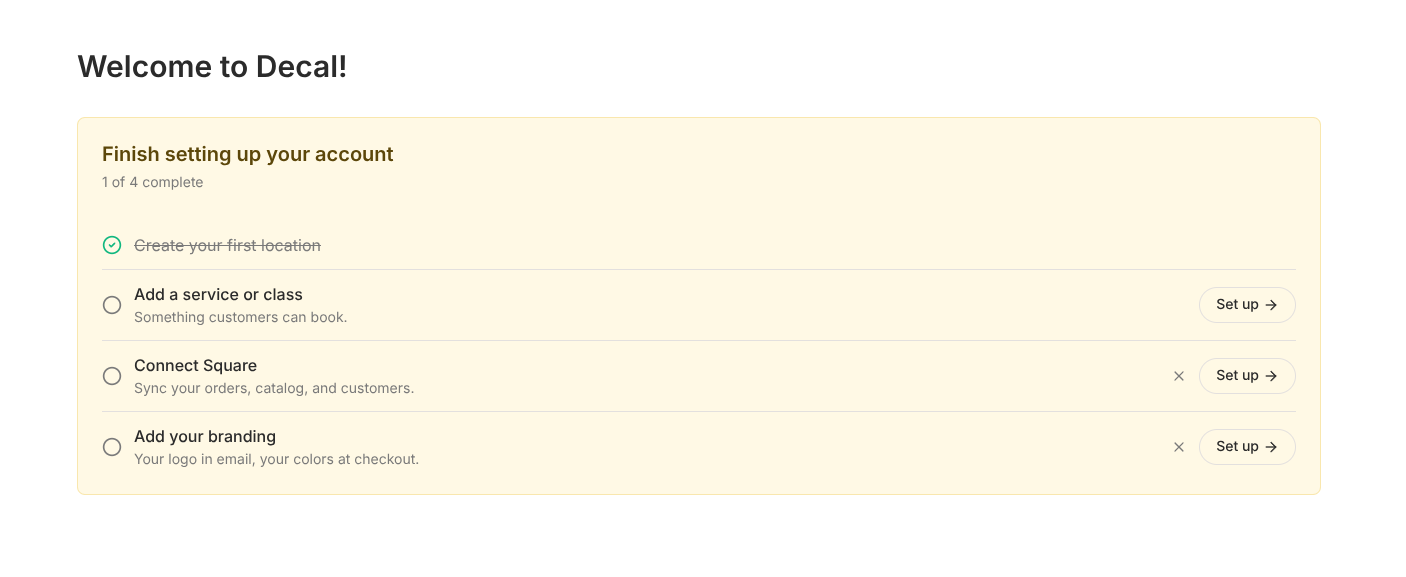 The setup checklist on a new merchant's dashboard, with the first location ticked off and steps remaining for a service, Square, and branding
The list is tailored to what you told us at signup. Say Square is what you run on today, or ask for it during setup, and Connect Square appears as a step and ticks itself off once you've connected. Turn on Bookings and the checklist covers everything needed to take a real booking: a location first, then a service or class customers can pick.
Optional steps like adding your branding can be dismissed by an owner or admin, and stay dismissed everywhere you sign in. Once your setup is done the checklist disappears for good and your revenue metrics take its place. Accounts that have already taken a payment never see it at all.
Your Progress Follows You Around the Dashboard
While setup is unfinished, a slim strip sits at the top of every page showing how far along you are, with a link back to the checklist. Finishing a step like adding your first location no longer leaves you stranded on a settings page with no way back to what's left.
On phones the strip stays put. The header above it still slides out of the way as you scroll, but the strip does not, because it's the way back.
Signup Asks What You Want to Set Up
Pick Bookings at signup and it's switched on before you reach your dashboard. Pick Square integration, or tell us Square is what you use today, and your dashboard home offers you the connect step on arrival. Picking nothing keeps the flow exactly as it was. The same question appears when you complete setup from an invitation, and means the same thing there.
That step also asks what you run your business on today, and leaves room to tell us anything else about it, so we can point you at the right setup. Both answers are optional. Stripe joins Square, Clover, Toast, Lightspeed, Shopify, and WooCommerce in the list of platforms you can tell us about, here and on the application form.
Signup copy now describes the whole platform rather than only stablecoin payments, and tells you upfront that setup takes about three minutes.
Share a Dashboard Link Without Knowing the Organization
A dashboard link now opens in the recipient's own organization. A URL like
dashboard.usedecal.com/home/settings/locations goes straight there for merchants with one
organization, and offers a picker labelled with the destination for merchants with several. Query
strings and anchors survive sign-in and organization selection.
Signing in from a link that points at a specific page now takes you to that page even if you were already signed in. The destination used to be dropped and you landed on the dashboard home.
Switching organizations from the sidebar keeps you in the same section. Viewing Orders in one organization and switching takes you to Orders in the other. Links to a specific record fall back to that record's section, since records belong to a single organization.
Pages That Tell You What to Do Next
These pages now introduce themselves and open the right flow, instead of opening on an empty table with nothing to act on:
- Settlement Wallets walks you through connecting a wallet you already own: what settles into it, and what verifying it costs (one signature, no keys shared).
- Settings → Team shows what a teammate gets, their own login, role-based permissions, and their own activity history, with a button that opens the invite dialog. It goes away once you've sent an invite or added a second member.
- Bookings prompts you to create your first bookable service and opens the wizard right there.
- Locations explains what locations are for and opens the location wizard.
Bookings now asks for a location before anything else, because a booking can't exist without one. The bookings overview and the calendar both explain why and open the location wizard directly. The overview used to skip this check, so a merchant with no locations could add a service that was bookable nowhere.
Creating a location no longer throws you onto that location's detail page. You stay where you were, so adding a location from the bookings pages drops you back into setting up bookings.
Minor Improvements
- Products & Add-ons leads with what you can turn on today. Anything still in beta or being built is grouped under a "Coming soon" heading further down the page, and every add-on card carries the same icon its sidebar link uses once you enable it.
- Your names are capitalized for you. Type "acme coffee co" at signup and your organization shows up as "Acme Coffee Co", and the same applies to your own first and last name. A name you deliberately cased, like "eBay", "McKayla", or "van der Berg", is kept exactly as typed. You can change either one later from settings, where whatever you enter sticks as-is.
- The user menu shows your name, not your email address. It was falling back to your email after signing up, completing an invite, or logging back in.
- Turning on an add-on puts it in your dashboard navigation straight away, instead of on your next click. This applied to every add-on you enable, including ones you turn on long after signup.
- Invited merchants see their own timezone, detected from their browser, rather than UTC pre-selected as though someone had chosen it.
- The invite dropdown says what each role can do. No more guessing between Admin, Member, and Viewer, or reopening the dropdown to recheck the one you're not currently on.
- The sole owner of an organization no longer sees "Leave organization" on the team page or their own member page. Transferring ownership first is a prerequisite that doesn't need a dead-end dialog to explain it.
- Every page in an organization has a header on mobile. Square integration settings, Finances, Website, Products, and your business profile had none at all, leaving no way to reach the menu without scrolling back to the top. Customer detail pages no longer render two.
- Three signup fixes. The page itself failed to load in production, because its social share card pulled fonts and artwork the moment the page rendered. The email field turned red with "Email is required" the moment you clicked anywhere else, before you'd typed anything. And the step indicator sat crooked on phones when a step name wrapped onto two lines.
- Legal entity types are spelled out rather than abbreviated, so "Limited Liability Company (LLC)" is no longer easy to confuse with a Limited Liability Partnership.